
Website server migration service – move your site and email without downtime
Moving a website to a new server looks like copying files, but in practice the site, email, DNS, SSL and database are all tied together. Get the order wrong and you end up with lost email or a "Not secure" warning in the browser. This page walks through a zero-downtime migration, gives you an email and SSL checklist, and explains how UNANOBO starts with a free demo of your site running in the new environment.
- Free demo – decide after you see it
- By message, in Japanese or English
- One person from demo to launch
FREE DEMO
Preview your migrated site – free
Send us your site address and, if you know them, your hosting and domain providers. You get a free demo running in a new environment and a plan for moving without downtime.
- Your site running on a new setup, free
- Email, DNS and SSL scope mapped out
- A switch plan and date proposal
When a server migration makes sense – and what moves
Common triggers are a slow site, a renewal price that jumped, a PHP version the old host cannot update, or a provider you can no longer reach. Once you decide to switch hosts, start with a list of everything that has to move.
- Website: files and images, plus the database for WordPress and similar CMSs
- Email: addresses, existing mail, forwarding rules and auto-replies
- DNS: A records, MX records and TXT records such as SPF and verification entries
- SSL: a free certificate or a paid one, and how it renews
- Domain: the registrar, the registered owner and the login
- Extras: form recipients, scheduled jobs (cron) and connections to outside services
A frequent surprise: the domain was bundled with the old hosting plan. Cancel the plan and the domain can go with it. Check the Whois record and your contract to confirm where the domain is registered and in whose name before you do anything else.
What usually goes wrong in a host move
Most migration problems come from the order of the switch and from skipping checks. These are all preventable at the planning stage.
- Right after the DNS switch, some email lands on the old server and nobody reads it
- The new SSL certificate is not ready, so the site shows "Not secure" for hours
- A different PHP version breaks a plugin and the page goes blank
- A database character-set mismatch turns Japanese text into garbage
- Contact form notifications still use the old sender settings and end up in spam
- The old server is cancelled too early and forgotten files are gone for good
Two habits avoid nearly all of these: test the site on the new server before the switch, and keep the old server running for a while after it. If you are still choosing a host, our guide to website hosting covers what to compare.
Check your site in a new environment as a free demo before anything live is touched. Send us your site address to start.
A zero-downtime migration, step by step
The idea is simple: finish everything on the new server first, then switch DNS last. A typical order looks like this:
- Lower the TTL: one or two days ahead, set DNS TTL to around 300 seconds so the switch spreads faster
- Set up the new server: match the PHP version and database settings of the old one
- Copy the data: files and database; for WordPress, check site URLs and settings
- Test before launch: use your computer's hosts file or a temporary URL to check pages and forms on the new server
- Prepare email: create the same addresses on the new server and note the passwords
- Switch DNS: at a quiet hour, point the A and MX records to the new server
- Run both in parallel: keep the old server for several days and check for stray email or missed updates
- Cancel the old plan: once everything is confirmed, take a final backup and cancel
DNS changes can take a few hours and occasionally up to 72 hours to reach everyone, and during that window some visitors see the old server and some the new one. Freeze content updates before the switch so nothing gets posted to the old site in the meantime.
What the free demo gives you
- 01A working demoA demo site you can open and click through on a computer and a phone.
- 02A structure proposalWhich pages you need, what goes on each and where visitors get in touch.
- 03Plan and estimateAfter you have seen the demo you get the plan to launch and an estimate.
Why it is safe to ask
- The demo is free. If you decide not to go ahead, it costs you nothing.
- Everything happens by message, in Japanese or English.
- Your domain, hosting, ad and analytics accounts stay in your name.
- The founder handles your project from the first demo to growth after launch – one contact all the way.
Demo sites we built
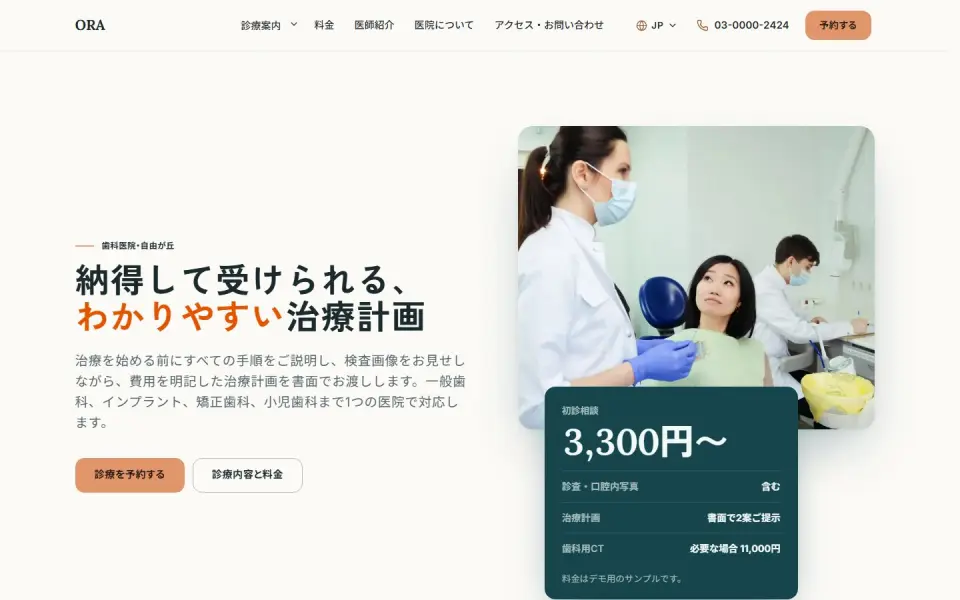 Dental clinic – ORATreatments, prices, doctors and booking
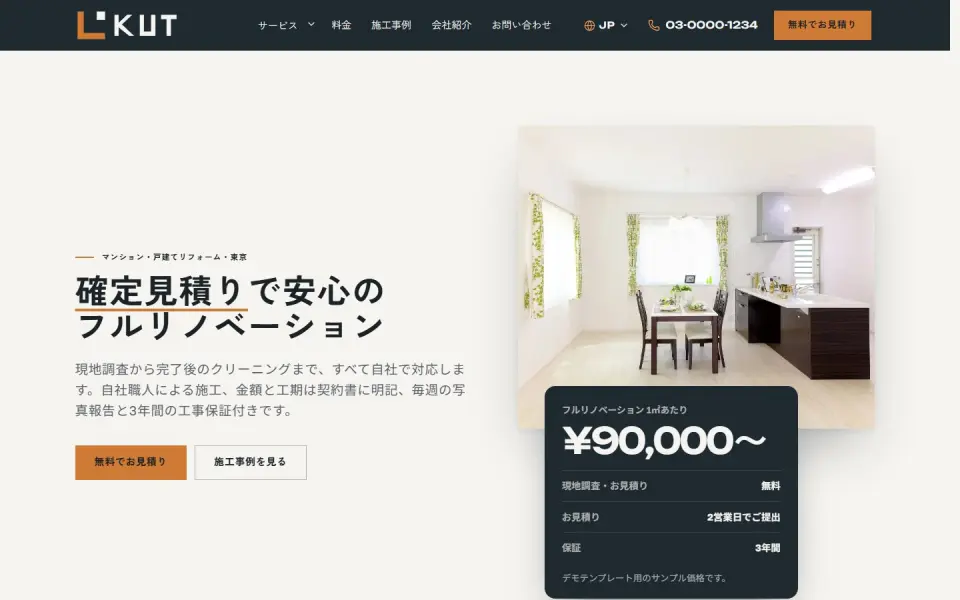 Renovation – KUTEstimate request, projects and prices
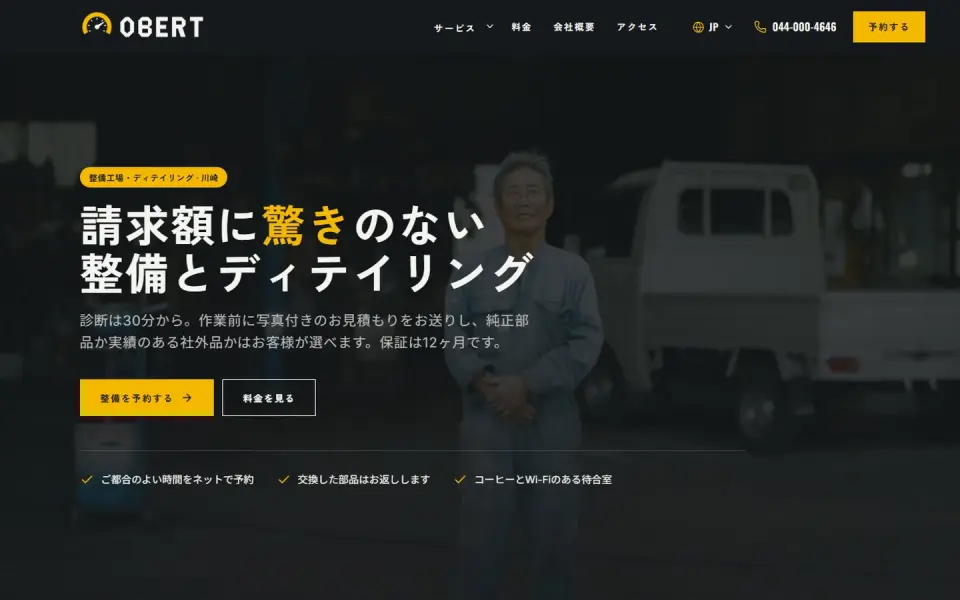 Car service – OBERTService and detailing prices, booking
Template demos with fictional brands. Yours is built with your own brand and content.
Email and SSL checklist
You can see a broken page immediately, but email and SSL problems often go unnoticed for days. Work through these before and after the switch.
- MX records: mail points to the new server, or to Google Workspace or Microsoft 365 if you use them
- SPF, DKIM, DMARC: sender authentication matches the new server – this affects delivery to Gmail and Yahoo
- Mailbox contents: if old mail matters, copy it over IMAP or save it in your mail app first
- Mail app settings: if server names or ports change, send everyone clear setup steps
- SSL issuance: free certificates are usually issued only once DNS points to the new server, so request them right after the switch
- Paid certificates: check how to install them on the new host and when they expire
- HTTPS: http redirects to https, no mixed content, and the padlock shows on every page
The more people use company email, the more it pays to announce the switch date and agree how to check mail that reaches the old server. Tick off the checklist on the day.
We map out the email and SSL scope for you alongside the free demo.
Moving to a new CMS at the same time
If the move also means a new platform – WordPress to Shopify, or an old custom CMS to WordPress – page URLs almost always change. Then carrying over your URLs matters more than moving files.
- Map every old URL to its new one and set a 301 redirect for each
- Carry over titles, descriptions and content of your most visited pages
- Resubmit the sitemap in Search Console and watch for errors
- Install GA4 and ad tags on the new site so you can compare before and after
For moving WordPress itself to another server, see WordPress migration. For redirects when URLs change, see 301 redirects and site migration SEO.
How UNANOBO handles a server migration: a free demo first
Before you commit, UNANOBO prepares a free demo: your site, based on its current content, running in the new environment. You check the pages and speed on your computer and phone, and you get a proposal for the scope and steps of the move, including email and DNS. You decide whether to go ahead after seeing it.
The process is free demo, feedback, launch, growth. The founder handles every project personally, from the first demo through switch day to maintenance afterwards, so you keep one contact. Everything runs by message, in Japanese or English, and your domain and hosting stay in your own name.
How it works
- 01
Free demo
We start with a free demo built around your brand.
- 02
Feedback
Structure, tone and details are refined with you, on the demo itself.
- 03
Launch
The site goes live on a solid SEO foundation.
- 04
Growth
SEO and ads take it further, guided by the numbers.
FAQ
What does the free demo show?
Your site, built from its current content, running in a new environment, so you can check pages and speed on desktop and mobile. You also get a proposal for the migration scope and steps, including email, DNS and SSL. The demo costs nothing.
What if I decide not to go ahead?
That is fine. There is no charge if you stop after seeing the demo. Your current server and settings stay untouched until you actually place an order.
How long does a migration take?
For a small site, one to two weeks from preparation to switch is a typical guide. More pages, many email accounts or a CMS change add time. You get a schedule at the demo stage, including the DNS window and the parallel-running period.
What do I need to prepare?
Logins for your current hosting and domain control panels, a list of the email addresses in use, and your CMS admin account if you have one. If you are not sure where your logins are, we help you work out who your providers are.
Will we lose email during the move?
The same addresses are created on the new server in advance, and the old server stays active for a while after the DNS switch, so incoming mail keeps flowing. For several days around the switch, mail that reaches the old server can still be checked.
Does it work remotely, by message?
Yes. Server migrations are done through control panels and remote access anyway, so location makes no difference. We communicate by message in Japanese or English, reply within two business days, and agree on the switch date and time with you in advance.
Related pages
FREE DEMO
See your site on its new server first
Send us your current site address. We build a free demo of it running in a new environment and propose the migration steps.