
How to get your website indexed by Google – from launch to search results
A new page cannot appear in Google until Google has found it and added it to its index. Many site owners launch, wait a week, type "site:" plus their domain and see nothing. This page walks through how indexing works and the exact steps to get a website indexed by Google: Search Console setup, XML sitemap submission and index requests.
- Free demo – decide after you see it
- By message, in Japanese or English
- One person from demo to launch
FREE DEMO
From free demo to indexed in Google
Send us your current site address or a short description of the site you want. We build a free demo around your brand and outline how indexing will be handled at launch.
- A free demo built around your brand
- An indexing plan for your launch
- Search Console set up in your name
How Google indexing works: three stages
Every page in Google's results is stored in Google's index. Getting there happens in three stages:
- Discovery: Google learns the URL from a link or a sitemap
- Crawling: Googlebot visits the page and reads its content
- Indexing: Google evaluates the page and stores it for use in search
A brand-new site has almost no links pointing to it, so discovery is usually the slow part. Telling Google about the site through Search Console on launch day is the shortest route. Google still decides whether and when a page is indexed – it can take a few days or several weeks.
Check first: is your site already indexed?
Before changing anything, find out where you stand. There are three quick ways to check:
- site: search: search Google for "site:yourdomain.com" to see a rough list of indexed pages
- URL Inspection: paste a single URL into Search Console to see whether it is indexed and why
- Page indexing report: Search Console shows indexed and non-indexed pages with the reasons
If the reason says "Crawled – currently not indexed", the cause is usually the page itself; see crawled but not indexed for fixes. If pages are indexed yet nobody finds them, read why your website does not show up in search.
Send us your site address – we check how Google sees it and build a free demo of a new design.
Setting up Google Search Console
Google Search Console is Google's free tool for site owners. Every indexing check and request goes through it, so set it up first.
- Sign in with a company Google account: avoid a staff member's personal account
- Add a property: a "Domain" property covers all subdomains and both http and https; a "URL prefix" property covers only one address
- Verify ownership: a DNS TXT record for a Domain property; an HTML file, meta tag, GA4 or Google Tag Manager for a URL prefix
- Add users: give your agency or staff user access under Settings, and keep the owner role in your company
If you can reach your DNS settings, choose a Domain property – one view covers www, non-www and http redirects. A Search Console account that only your agency can log in to becomes a problem the day you change providers, so keep ownership on your side.
What the free demo gives you
- 01A working demoA demo site you can open and click through on a computer and a phone.
- 02A structure proposalWhich pages you need, what goes on each and where visitors get in touch.
- 03Plan and estimateAfter you have seen the demo you get the plan to launch and an estimate.
Why it is safe to ask
- The demo is free. If you decide not to go ahead, it costs you nothing.
- Everything happens by message, in Japanese or English.
- Your domain, hosting, ad and analytics accounts stay in your name.
- The founder handles your project from the first demo to growth after launch – one contact all the way.
Demo sites we built
 Dental clinic – ORATreatments, prices, doctors and booking
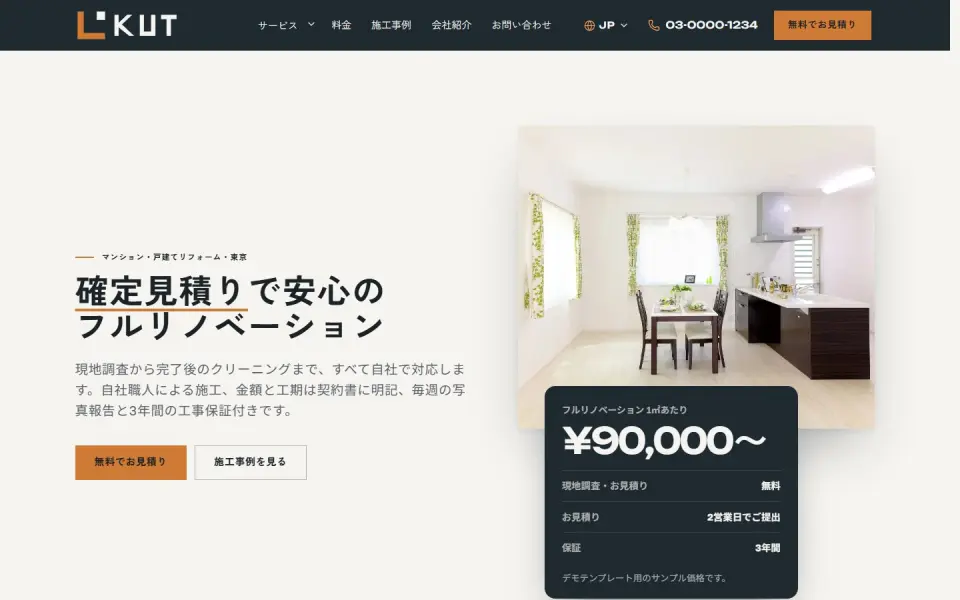 Renovation – KUTEstimate request, projects and prices
 Café & roastery – KashtanMenu, events and an online bean shop
Template demos with fictional brands. Yours is built with your own brand and content.
Creating and submitting an XML sitemap
An XML sitemap lists the URLs on your site so Google can find them. Even a small site benefits right after launch. How much work it takes depends on your platform:
- WordPress: version 5.5 and later creates /wp-sitemap.xml automatically; if you use an SEO plugin, keep only the plugin's sitemap
- Shopify: /sitemap.xml is generated automatically and updates as you add products and collections
- Hand-built sites: use a generator or update the file whenever pages are added
- Which URLs to list: only canonical pages you want in search – no noindex pages, redirected URLs or error pages
- Submit it: enter the sitemap URL under Sitemaps in Search Console and check that the status reads "Success"
One sitemap can hold up to 50,000 URLs; beyond that, split it and group the files in a sitemap index. Adding a "Sitemap:" line to robots.txt also tells other search engines where to look.
Every site we launch goes live with its sitemap submitted. Start by seeing your free demo.
Requesting indexing – and what to watch for
For a freshly published page or one you have rewritten, you can request indexing directly from URL Inspection:
- Paste the page URL into the search bar at the top of Search Console
- Click "Test live URL" to confirm Google can fetch the page
- If all is well, click "Request indexing"
- Inspect the same URL again after a few days to two weeks
There is a daily limit on requests, and sending the same URL repeatedly does not speed anything up. Use requests for key pages – the home page and main service pages – and let the sitemap handle the rest. If the live test reports "Excluded by noindex tag" or "Blocked by robots.txt", a setting from the staging phase is still active. Put both on your pre-launch checklist.
How UNANOBO handles indexing at launch
When UNANOBO launches a site, Search Console setup, sitemap submission and index requests for the key pages are part of the launch itself. Leftover noindex tags, robots.txt blocks and missing redirects are checked on launch day, and the Search Console owner role is set to your own account.
The process is free demo, feedback, launch, growth. You first see a free demo built around your brand, and production starts only once you are happy with it. The founder handles every project personally, so you keep one contact from the demo to growth after launch, by message in Japanese or English. For the full launch picture, see launching a new website.
How it works
- 01
Free demo
We start with a free demo built around your brand.
- 02
Feedback
Structure, tone and details are refined with you, on the demo itself.
- 03
Launch
The site goes live on a solid SEO foundation.
- 04
Growth
SEO and ads take it further, guided by the numbers.
FAQ
Does requesting indexing make my page appear right away?
Sometimes it takes a few days, sometimes several weeks, and a request does not guarantee indexing. Google decides based on the page's content and quality. Re-check with URL Inspection afterwards to see the actual status.
Does Search Console or the demo cost anything?
Search Console is free from Google. The UNANOBO demo is free too, and if you decide not to go ahead after seeing it, nothing is charged.
Can you just check why my current site is not indexed?
Yes. Send us the URL and we look at how Google sees the site, including noindex and robots.txt settings, and send you our findings by message. If a rebuild makes more sense, we can also offer a free demo of a new design.
What do I need to prepare?
Your site address and the name of the company where your domain is registered. A Domain property needs a DNS record, so someone with access to the domain panel may need to help. Search Console is set up under a Google account in your name.
You are not based in Japan – how does working by message go?
Everything, from the first questions to setup reports, runs by message in Japanese or English, and you get a reply within two business days. When you need to click something yourself, you get step-by-step screenshots.
Do I need a sitemap if I use WordPress or Shopify?
Both create a basic sitemap automatically, so you rarely need to build one. What matters is submitting its URL in Search Console and making sure unwanted pages are not listed. After adding plugins or apps, also check that you do not end up with two competing sitemaps.
Related pages
FREE DEMO
Launch a site that gets found
Every new site starts with a free demo, and launch includes Search Console setup and index requests. See the demo first.