
Google Ads conversion tracking setup – count the results that matter
Conversion tracking is how you know which ads actually bring inquiries and sales. When tags do not fire or every lead is counted twice, Google Ads bidding and your own budget decisions run on the wrong numbers. This page covers what to count, the ways to install tracking, linking GA4, enhanced conversions and consent mode, and a checklist for zero or duplicated conversions.
- Free demo – decide after you see it
- By message, in Japanese or English
- One person from demo to launch
FREE DEMO
A site built to track results – free demo
Send us your site address and the results you want to track – inquiries, purchases or bookings. We build a free demo with the conversion path designed in, plus a tracking plan.
- A free demo with the conversion path built in
- A clear plan of what to count as a conversion
- Advice on tag installation and the GA4 link
What goes wrong when Google Ads conversion tracking is off
Conversion tracking is the signal that Smart Bidding strategies such as Maximize conversions and Target CPA learn from, so its accuracy shapes who sees your ads.
- Zero conversions: real leads come in, but bidding sees no results and holds back delivery
- Double counting: results look better than they are, and budget flows to weak keywords and ads
- Page views counted as goals: a visit to the pricing page counts as a lead, which attracts low-quality traffic
- Calls and external booking tools left out: your main source of results is missing, so ads look less useful than they are
A quick check: in Google Ads, open Goals → Conversions and look at each action's status, its recent count and whether it is Primary or Secondary. If the numbers are far from the inquiries you actually received, the setup needs work.
Decide what counts as a conversion first
Before any tag goes in, agree on which actions you want to count.
- Primary goals: form submissions, completed purchases, confirmed bookings – actions tied to revenue. Set these as Primary so bidding uses them
- Supporting actions: phone number taps, LINE friend adds, brochure downloads. Keep them as Secondary to watch trends without steering bids
- Counting: use "One" for leads and "Every" for purchases, so a repeated form submission does not inflate results
- Conversion value: pass the order value for online stores; for leads, set an estimated value from your close rate and average deal size
- Conversion window: if buyers take weeks to decide, use a longer window between the click and the conversion
Write it down as a simple table: goal name, page or button where it happens, counting method and value.
It is easier to decide while looking at the path to an inquiry in a demo. Send us your current site address to start.
Three ways to install conversion tags – and linking GA4 with Google Ads
There are three main routes.
- Google tag directly: add the Google tag (gtag.js) site-wide and a conversion event on the thank-you page. Fine for small, simple sites
- Google Tag Manager: manage tags and triggers without touching site code. Good for form submissions, button clicks and other detailed rules
- GA4 key event import: link GA4 to Google Ads and import the key events you defined in GA4, so analytics and ads use the same definitions
To link them, go to Product links in the GA4 admin, connect your Google Ads account, then import the key events in Google Ads. Shopify stores can also send purchase data through the official Google & YouTube app. Whichever route you choose, never set the same goal as Primary through two sources. Step-by-step details are in our Google Tag Manager setup guide, and the base configuration of GA4 itself is covered in GA4 setup service.
What the free demo gives you
- 01A working demoA demo site you can open and click through on a computer and a phone.
- 02A structure proposalWhich pages you need, what goes on each and where visitors get in touch.
- 03Plan and estimateAfter you have seen the demo you get the plan to launch and an estimate.
Why it is safe to ask
- The demo is free. If you decide not to go ahead, it costs you nothing.
- Everything happens by message, in Japanese or English.
- Your domain, hosting, ad and analytics accounts stay in your name.
- The founder handles your project from the first demo to growth after launch – one contact all the way.
Demo sites we built
 Dental clinic – ORATreatments, prices, doctors and booking
 Beauty salon – MIRTABooking form, price list and team
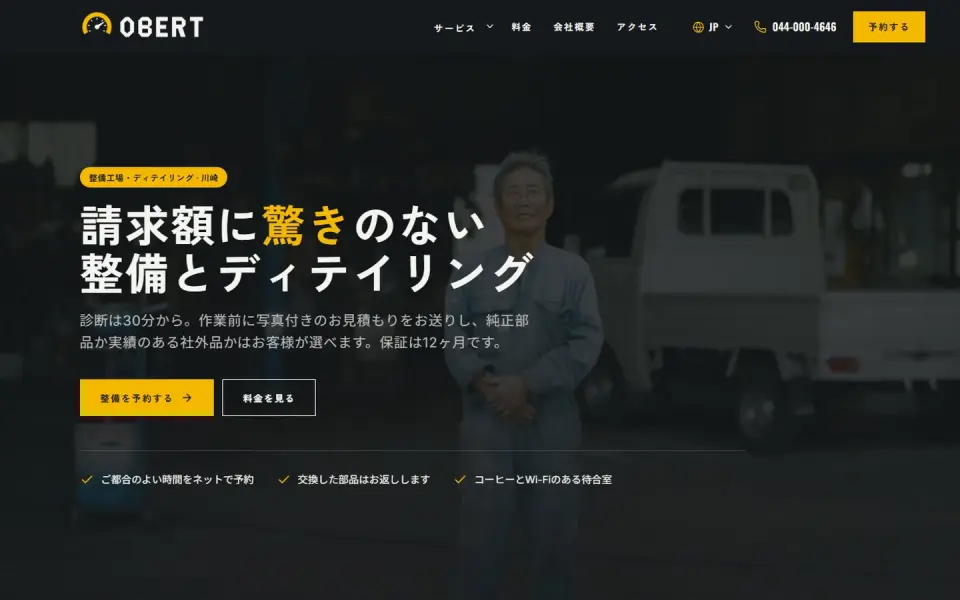 Car service – OBERTService and detailing prices, booking
Template demos with fictional brands. Yours is built with your own brand and content.
Enhanced conversions and consent mode
Browser cookie limits and visitors who decline cookies mean tags alone now miss part of your results. Enhanced conversions and consent mode help close that gap.
- How enhanced conversions work: the email or phone number entered in a form is hashed with SHA-256 (turned into a code that cannot be reversed), sent to Google and matched with signed-in Google accounts to recover conversions
- Setting them up: turn on enhanced conversions in your Google Ads conversion settings, then pass the form data through the Google tag, Tag Manager or the API. In Tag Manager you map the form fields with a user-provided data variable
- Consent mode: tells your tags whether a visitor accepted cookies, and runs them without cookies when they did not. Google requires consent mode v2 to use data from EEA and UK visitors for ad measurement and personalization
- In Japan: explain external data transmission and its purpose in your privacy policy, and check whether the external transmission rules of the Telecommunications Business Act apply to your site
If you show a cookie banner, connect it to your tags. Laws and Google policies change, so check the latest official help pages and guidelines as you go.
We build a free demo with forms and thank-you screens shaped for accurate tracking, including enhanced conversions.
Checklist: zero or duplicated conversions
If conversions stay at zero or look twice as high as reality, work through these in order. Google Tag Assistant and Tag Manager preview mode help.
- Tag not firing: no tag on the thank-you page, the tag disappeared in a site update, or the trigger URL does not match the real URL
- No thank-you page: the form stays on the same URL after sending, so a page-view trigger never fires. Track the form submission event instead
- External booking or payment tools: results on another domain are lost. Check cross-domain settings or the tool's own Google integration
- Still processing: new actions take time to show data. If the status stays Unverified or No recent conversions for several days, recheck the install
- Double tracking: both the Google tag and a GA4 import are set as Primary, or the same tag sits in the site code and in Tag Manager
- Reload duplicates: revisiting the thank-you page fires again. Count leads as "One" and pass a transaction ID for purchases
Only clean numbers support good ad decisions. Once tracking is right, see how to improve CPA for the bidding and ad copy side.
How UNANOBO sets up conversion tracking: start with a free demo
UNANOBO starts by learning how your ads and site work today, then builds a free demo with the path to an inquiry or booking – and the points worth measuring – designed in. Tracking is planned while forms and thank-you screens are being shaped, so every tag has a clear place before launch.
If you want to fix tracking on your current site, we first agree on what to count, how to install it, how GA4 connects and whether you need enhanced conversions and consent mode. Your Google Ads and GA4 accounts stay in your name; you simply share access. The founder handles every project personally, so you keep one contact throughout, and everything runs by message in Japanese or English.
How it works
- 01
Free demo
We start with a free demo built around your brand.
- 02
Feedback
Structure, tone and details are refined with you, on the demo itself.
- 03
Launch
The site goes live on a solid SEO foundation.
- 04
Growth
SEO and ads take it further, guided by the numbers.
FAQ
What does the free demo include?
A working demo of your site or landing page with the path to an inquiry or purchase built in. You can check it on a computer and a phone, and you get a proposal for what to track as conversions. The demo costs nothing.
What if I decide not to go ahead after the demo?
There is no charge at all. Nothing is changed in your ad accounts or on your site unless you decide to work with us.
Can you just fix the tracking on my current site?
Yes. We compare the conversion list in your account with the inquiries and orders you actually received, find the cause of the gap and then fix it.
How long does setup take?
For a site with a few goals, installing the tags typically takes a few days to a week, followed by a few days of checking that conversions record correctly. External booking tools and enhanced conversions depend on how the site is built, so you get a plan and estimate after the demo.
What do I need to prepare?
Your Google Ads, GA4 and Tag Manager accounts if you have them, access to your site's admin, the actions you want to count and your real monthly number of inquiries or orders. Accounts stay in your name and are shared through an access invitation.
Can we do everything by message, without meetings?
Yes. Sharing access, reviewing settings and confirming results all run by message. You get a reply within two business days, in Japanese or English.
Related pages
FREE DEMO
See a site that counts results correctly
Send us your current site address and we will build a free demo with the path to conversion and the tracking plan built in. Decide after you have seen it.