
Shopify Instagram Shopping setup – connect your catalog, pixel and ads properly
Connecting Shopify to Instagram looks like a one-click job, yet many stores later find products missing from Instagram or ad results that do not add up. A working setup needs three parts in place: the product catalog, Instagram Shopping and the Meta pixel. This guide covers what to prepare, the setup steps, the usual pitfalls and how to move on to product ads once everything is connected.
- Free demo – decide after you see it
- By message, in Japanese or English
- One person from demo to launch
FREE DEMO
A store Instagram can sell from – free demo
Send your Shopify store URL or Instagram account. We build a free demo of your store and show you how the Meta connection should be set up.
- Product pages designed for Instagram visitors
- A proposed catalog and pixel setup
- Checkpoints for your current connection
What a Shopify Instagram connection gives you
Shopify connects to Instagram through Meta's "Facebook & Instagram" app, installed as a sales channel in Shopify. It links four things, each with its own job:
- Catalog sync: product names, prices, stock and images flow from Shopify into your Meta catalog automatically
- Instagram Shopping: tag products in posts, Reels and Stories so people can tap through to the product page
- Meta pixel and Conversions API: views, add-to-carts and purchases are sent to Meta so ad results can be measured
- Product ads: your synced catalog powers ads that show each person the products they viewed or similar ones
Where to start depends on how you use Instagram today. If you already feature products in posts, start with product tagging. If paid growth is the priority, start with clean pixel data and an accurate catalog.
What to prepare before you connect
Most setup problems come from the Meta side, so check this list first and the connection usually goes through in one pass.
- An Instagram professional account: switch from a personal account to a business or creator account
- A Facebook Page for the brand, linked to the Instagram account
- A Meta business portfolio (formerly Business Manager): the container for your Page, Instagram, ad account, catalog and pixel
- An ad account and payment method created in your company's name, with admin access held by you
- Store basics: legal seller information (in Japan, the Specified Commercial Transactions Act notice), a return policy and contact details on your Shopify store
- A custom domain: easier to verify with Meta and more trustworthy than a myshopify.com address
Ownership matters most. Ad accounts or pixels created under a former agency's or an employee's personal profile often cannot be transferred and have to be rebuilt. Set up the business portfolio and everything in it under your own company from the start.
Mixed ownership and permissions are fine to start with – send us your store URL or Instagram account.
How to connect Shopify with Instagram and Meta
Screen names shift as the app is updated, but the decisions stay the same:
- Add the app: install "Facebook & Instagram" from the Shopify admin and log in with Facebook
- Choose your assets: select the business portfolio, Facebook Page, Instagram account and ad account
- Set data sharing: pick your pixel and a sharing level (standard, enhanced or maximum); higher levels add server-side events through the Conversions API
- Sync the catalog: sync all products or selected collections, then check the result in Meta Commerce Manager
- Verify your domain in the business portfolio to keep tracking and ad settings stable
- Apply for Instagram Shopping: submit your shop for review and start tagging products once approved
The shop review can take several days, and available features vary by country and over time. Use the waiting time to check the pixel and catalog so you can move straight to tagging and ads after approval. For tracking details, see Meta pixel and conversions setup.
What the free demo gives you
- 01A working demoA demo site you can open and click through on a computer and a phone.
- 02A structure proposalWhich pages you need, what goes on each and where visitors get in touch.
- 03Plan and estimateAfter you have seen the demo you get the plan to launch and an estimate.
Why it is safe to ask
- The demo is free. If you decide not to go ahead, it costs you nothing.
- Everything happens by message, in Japanese or English.
- Your domain, hosting, ad and analytics accounts stay in your name.
- The founder handles your project from the first demo to growth after launch – one contact all the way.
Demo sites we built
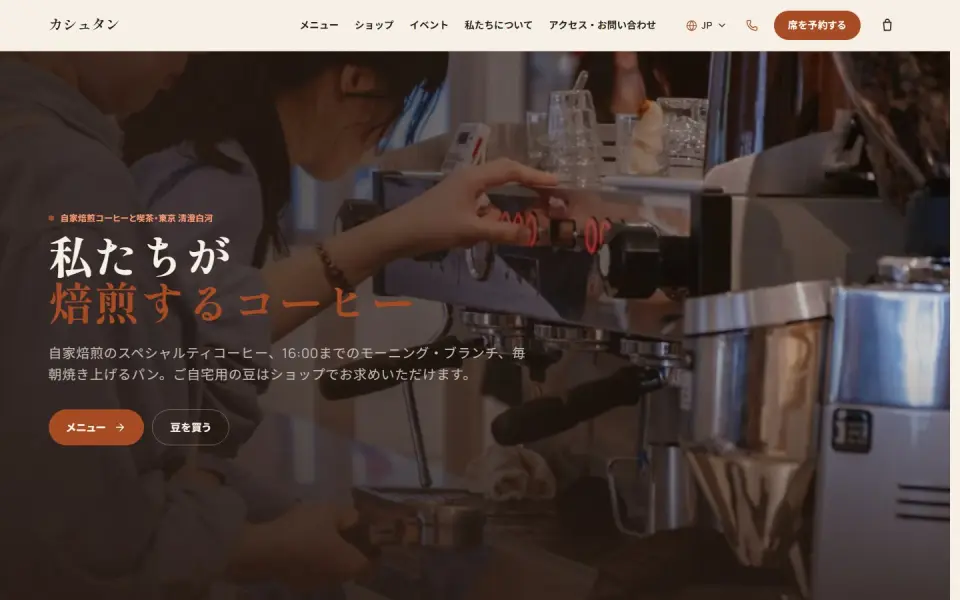 Café & roastery – KashtanMenu, events and an online bean shop
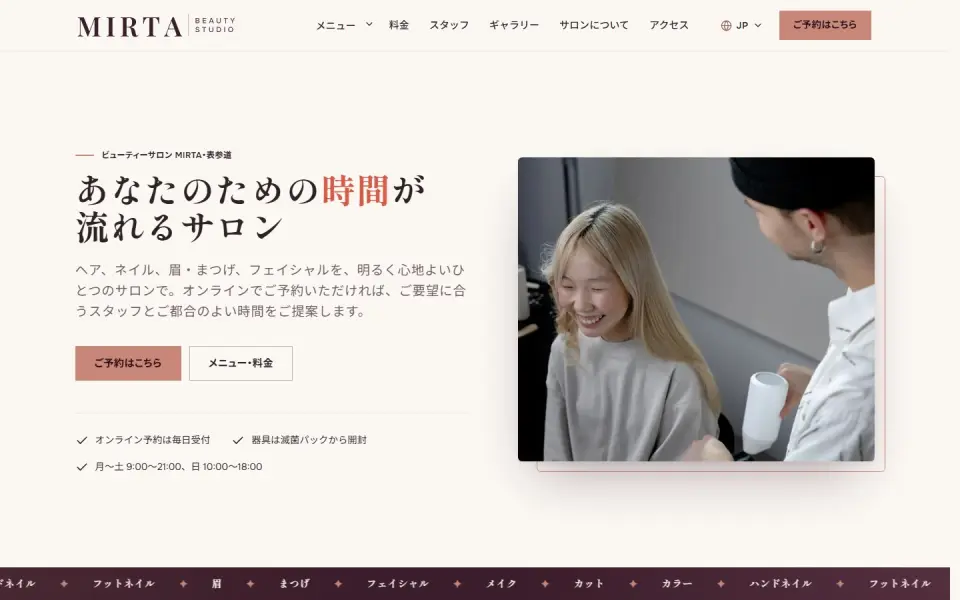 Beauty salon – MIRTABooking form, price list and team
 Jazz bar – SyncopaLive schedule, menu and table booking
Template demos with fictional brands. Yours is built with your own brand and content.
Common pitfalls and how to fix them
The app may say "connected" while parts of the setup quietly fail. Check these before you spend on ads:
- Purchases counted twice: old pixel code in the theme runs alongside the app's pixel – keep only one
- Products rejected in the catalog: text or frames on images, missing prices or stock, or wording that breaks ad policies – Commerce Manager shows the reason
- Sold-out items still in ads: review stock sync and any "continue selling when out of stock" settings
- Shop review fails: usually a missing return policy or contact details, or account location and product rules that do not fit
- Tags get taps but no sales: the product page is hard to use on a phone, or shipping costs and delivery times are unclear
If you sell supplements or cosmetics in Japan, product copy and ads also need to follow the Pharmaceutical and Medical Device Act and the Act against Unjustifiable Premiums and Misleading Representations. Interpretations get updated, so check the current guidelines when writing claims.
We show you, in a free demo, product pages that Instagram visitors can buy from without friction.
Running Shopify Meta ads once you are connected
With a clean catalog and working pixel, product ads come next. They are usually built around two jobs: helping new customers discover your products, and reminding people who visited your store of what they looked at.
- Catalog ads (Advantage+ catalog ads, formerly dynamic ads): automatically show each person the products they viewed or added to cart
- Sales campaigns: optimize for purchases and combine the catalog with several images and videos
- Product sets: split bestsellers, new arrivals and high-margin items so results are easy to compare and adjust
- Creative: add lifestyle photos and a few short vertical videos alongside plain product shots
Results rarely settle in the first days; accuracy improves as budget and purchase data build up. For budgets and how Meta fits with other channels, see e-commerce ad management, and for outsourcing, read Instagram ads management.
How UNANOBO handles Shopify and Meta
UNANOBO starts with a free demo of a Shopify store built around your brand, so you can see the product pages that Instagram visitors will land on before you commit. If you already have a store, we review your current product pages and Meta setup and propose how to connect and advertise.
The process is simple: free demo, feedback, launch, growth. The founder handles every project personally – from the demo through the connection, ad management and later improvements – so you keep one contact. Your business portfolio, ad account and pixel are created and kept in your name. Everything runs by message, in Japanese or English.
How it works
- 01
Free demo
We start with a free demo built around your brand.
- 02
Feedback
Structure, tone and details are refined with you, on the demo itself.
- 03
Launch
The site goes live on a solid SEO foundation.
- 04
Growth
SEO and ads take it further, guided by the numbers.
FAQ
Does the free demo cost anything?
No. We build a demo of your store or product pages around your brand, and you decide whether to continue after seeing it. If you stop there, you pay nothing.
We already connected Shopify and Instagram. Can you just review it?
Yes. We check for duplicate pixels, rejected catalog items, data sharing settings and account ownership, then send you a prioritized list of fixes. Existing assets are kept and cleaned up wherever possible.
How long until ads can run?
With accounts in place, the connection and tracking checks typically take a few days. Shop review and domain verification add waiting time, so plan on roughly one to two weeks before ads go live.
What do we need to prepare?
Collaborator access to your Shopify admin, a Facebook Page, an Instagram professional account and access to your business portfolio. If any of these are missing, we explain by message how to create them and whose name to put them in.
Is Instagram Shopping approval guaranteed?
Meta runs the review, so approval cannot be promised. Preparing the return policy, contact details and product and account requirements before applying reduces the chance of rejection.
Can we work together without meetings?
Yes. UNANOBO works remotely from outside Japan and everything runs by message. Steps come with screenshots, so you have a written record to look back on. Japanese or English both work.
Related pages
FREE DEMO
See a Shopify store that sells from Instagram
Send us your brand name and Instagram account and we will build a free demo of your store, product pages included. Decide after you have seen it.