
WordPress PHP upgrade service – tested on staging, upgraded safely
Your hosting company has announced the end of an old PHP version, or your WordPress dashboard keeps warning you to update. Switching PHP directly on the live site can leave you with a blank screen or a contact form that silently stops sending. This page explains the risks of staying on old versions, a safe upgrade process with staging and rollback, the most common errors and typical costs.
- Free demo – decide after you see it
- By message, in Japanese or English
- One person from demo to launch
FREE DEMO
See your site on current PHP – free
Send us your current site address. We build a free demo with your own content and brand on a current environment, so you can decide whether to fix or rebuild.
- A free demo running on current PHP
- Click through it on a computer and a phone
- An upgrade and rollback plan for your site
Why a WordPress PHP upgrade matters
PHP is the language WordPress runs on, and every PHP version has a fixed support period. Once it ends, security fixes stop, so any newly found weakness stays open. PHP 7.4 and 8.0 are already past end of life, and sites still running them should move soon.
- Security: unpatched PHP is a common entry point for defacement and break-ins
- Forced switch: hosts retire old PHP versions and may move your site to a newer one automatically on a set date
- Blocked updates: new WordPress releases and plugins drop support for old PHP, so you can no longer update
- Speed: PHP 8 runs noticeably faster, so the same site often loads more quickly
The forced switch is the one to watch. If it happens before you are ready, your site can simply stop loading one morning. If your host's notice gives a date, plan backwards from it.
How to check your versions – and signs you should hurry
Start by knowing where you stand. Each of these takes a few minutes in your dashboard or hosting control panel.
- WordPress dashboard: Tools → Site Health → Info shows your PHP and WordPress versions
- Hosting panel: most hosts let you see and switch the PHP version per domain
- Dashboard warning: "PHP update required" means you are below the recommended version
- Plugin list: some plugins cannot update because they require a newer PHP
- Theme: your theme is no longer maintained, or was custom-built by a previous agency
If the last two apply, errors after a PHP upgrade are much more likely. Test on a staging copy before you touch the live site, as described below.
Send us your site address and see a free demo on a current environment first.
A safe upgrade process: staging and rollback
Two principles keep a WordPress upgrade safe: see the result before it reaches the live site, and be able to undo any change quickly. The usual order is:
- Back up: save all files and the database, and confirm the backup can actually be restored
- Create staging: copy the live site to a private environment hidden from search engines
- Update core, theme and plugins: remove unused plugins, then update the rest on staging
- Switch PHP: move staging to the new PHP version and read the error log
- Test: home page, key pages, contact form submissions, bookings or cart, mobile view
- Go live: repeat the same steps on the live site at a quiet hour and run the same checks
- Rollback plan: decide in advance how to switch PHP back or restore the backup if something breaks
Problems found on staging can be fixed without affecting visitors. Outdated plugins are usually replaced with maintained alternatives, and custom themes get their old code updated. To keep things stable afterwards, regular WordPress maintenance with scheduled updates and backups saves a lot of effort.
What the free demo gives you
- 01A working demoA demo site you can open and click through on a computer and a phone.
- 02A structure proposalWhich pages you need, what goes on each and where visitors get in touch.
- 03Plan and estimateAfter you have seen the demo you get the plan to launch and an estimate.
Why it is safe to ask
- The demo is free. If you decide not to go ahead, it costs you nothing.
- Everything happens by message, in Japanese or English.
- Your domain, hosting, ad and analytics accounts stay in your name.
- The founder handles your project from the first demo to growth after launch – one contact all the way.
Demo sites we built
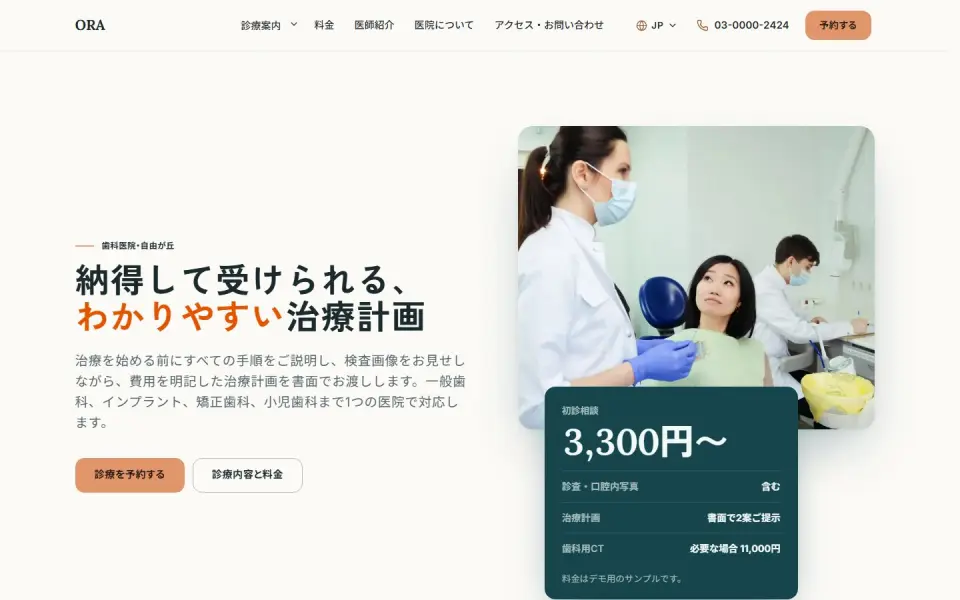 Dental clinic – ORATreatments, prices, doctors and booking
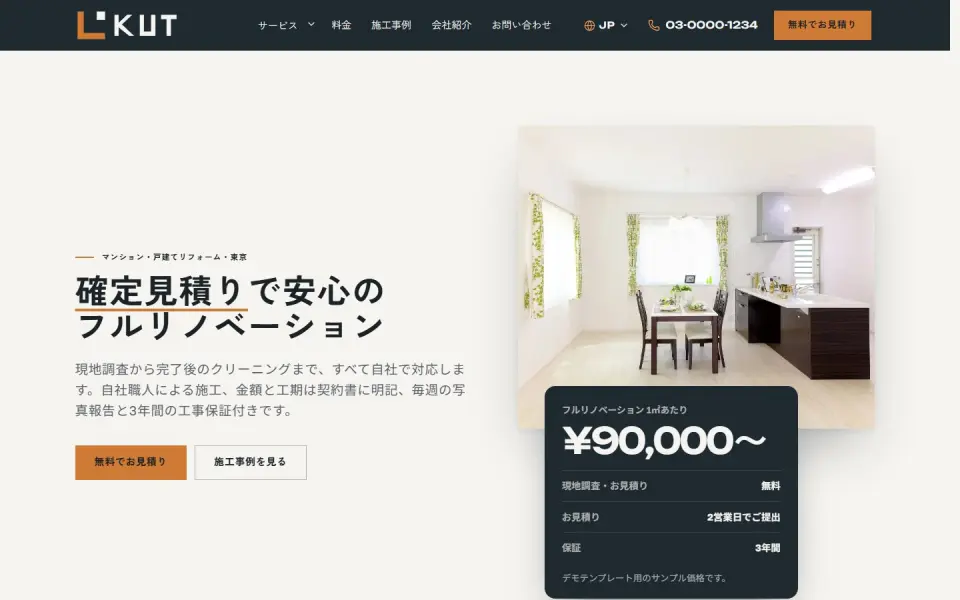 Renovation – KUTEstimate request, projects and prices
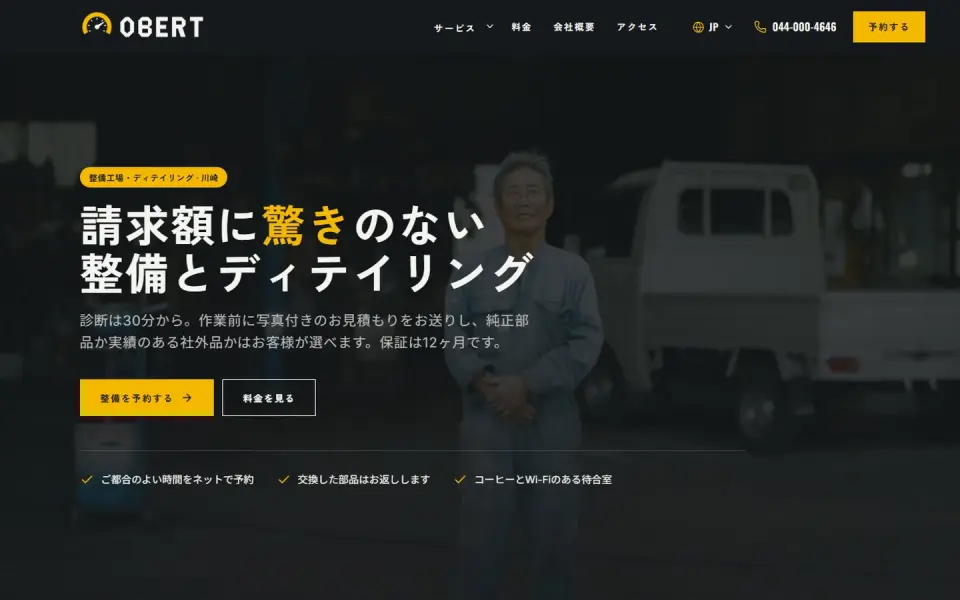 Car service – OBERTService and detailing prices, booking
Template demos with fictional brands. Yours is built with your own brand and content.
Common errors and typical WordPress upgrade cost
Most issues when moving to PHP 8 come from old code that newer PHP no longer accepts. Typical symptoms:
- A blank white screen, or "There has been a critical error on this website"
- Contact forms that fail to send, or confirmation emails that never arrive
- Sliders, galleries or other parts of the layout breaking
- Being unable to log in, or the editor refusing to open
- Warning or Deprecated notices printed at the top of pages
If you are already seeing these, our guide to fixing WordPress errors walks through the fixes. Cost depends on the number of plugins, how much the theme was customized and how much code needs changing. In Japan, a small site with few issues typically costs in the tens of thousands of yen, while heavily customized sites can reach a few hundred thousand. When comparing quotes, check that staging tests and a rollback plan are included.
A free demo on current PHP makes it easier to judge whether fixing or rebuilding is the better path.
How UNANOBO handles a PHP upgrade: a free demo first
Before you commit, UNANOBO builds a free demo based on your current content and brand, running on a current PHP environment. You check it on your computer and phone, and then we decide together whether to fix and upgrade your existing site or rebuild it.
The process is simple: free demo, feedback, launch, growth. The founder handles every project personally, so you keep one contact from the first demo to maintenance after launch. Everything runs by message, in Japanese or English. If your site needs so many fixes that another platform would be easier to run, see alternatives to WordPress.
How it works
- 01
Free demo
We start with a free demo built around your brand.
- 02
Feedback
Structure, tone and details are refined with you, on the demo itself.
- 03
Launch
The site goes live on a solid SEO foundation.
- 04
Growth
SEO and ads take it further, guided by the numbers.
FAQ
What does the free demo show?
A working site centered on the home page, built from your current content, logo and colors on a current PHP environment. You can check it on mobile too. After you have seen it, you receive a proposed approach and an estimate.
Is there any cost if I decide not to go ahead?
No. The demo is free, and you are welcome to stop after seeing it. The checks we discuss along the way remain useful if you do the work yourself.
Will my site go offline during the upgrade?
Testing and fixes happen on staging, so your live site stays online. The live switch is done at a quiet hour and usually takes little time. A rollback procedure is agreed in advance in case anything goes wrong.
How long does it take?
A site with few plugins and no major fixes typically takes a few days to a week. Custom theme fixes or many outdated plugins can stretch it to a few weeks. If your host has a cut-off date, the plan is built to meet it.
What do I need to prepare?
Your WordPress admin login, hosting control panel access and domain details are enough to start. Forward any notice your host sent about PHP as well. All accounts stay in your own name.
Can we work together remotely?
Yes. Everything from the first question to the final report runs by message, in Japanese or English, with replies within two business days. Before and after the work, you get a plain summary of what was changed.
Related pages
FREE DEMO
See your site on a current PHP version first
Send us your current site address and we will build a free demo on a current PHP environment. Decide after you have seen it.