
WordPress error fix service – white screens, login errors and plugin conflicts repaired remotely
Your WordPress site shows a blank white page, the admin login keeps failing, or a plugin update broke the layout. Most of these problems can be fixed without losing content, as long as the cause is traced step by step. This page explains how to read the symptoms, what you can safely check yourself, how each cause is usually fixed and what to prepare before asking for help – and how UNANOBO repairs sites remotely.
- Free demo – decide after you see it
- By message, in Japanese or English
- One person from demo to launch
FREE DEMO
See your WordPress site fixed – free
Send the site URL and a description of the problem, ideally with a screenshot of the error. We repair it on a test copy and show you the working result as a free demo.
- Fixed on a test copy before going live
- A clear note on the cause and the changes
- White screens, login errors, plugin conflicts
Common WordPress errors and what they point to
The message on screen, and where it appears, usually tells you a lot about the cause. Start by matching your situation to one of these.
- Blank white screen: nothing loads at all. Often a PHP error in a plugin or theme, or the site running out of memory
- "There has been a critical error on this website": shown since WordPress 5.2. The admin email may have received a link to recovery mode
- "Error establishing a database connection": wrong database credentials, a hosting outage or a damaged database
- 500 Internal Server Error: frequently a broken .htaccess file, a PHP version mismatch or a server setting change
- Login problems: the password is rejected, the login page keeps reloading, or a security plugin has locked you out
- "Briefly unavailable for scheduled maintenance": an update stopped halfway and left its maintenance file behind
- Broken layout or one feature not working: usually a plugin conflict or a caching issue
The exact error text is the best clue for whoever repairs the site, so take a screenshot before closing the page.
What happens if a broken site is left as it is
While the site is down, people still arrive from search, ads and the QR code on your business card. A few days of "this page isn't working" means inquiries and bookings simply go elsewhere.
- Running ads keep sending paid clicks to a page that does not load
- Search engines see repeated errors, which can affect how the site is listed
- A broken contact form means messages stop arriving and nobody notices
- If the real cause is a hack, the damage keeps spreading
If you see pages you never created, or visitors get redirected to other sites, treat it as a security incident first and follow our guide to hacked WordPress site recovery.
Send the URL and the symptoms, and we will show you the repaired version as a free demo.
Safe checks you can do yourself
None of these touch your site's files or data, and sometimes they solve the problem on their own.
- Open the site on another device and network, for example a phone on mobile data
- Clear the browser cache or try a private window
- Check your hosting company's status page for outages or maintenance
- Make sure the domain and hosting contracts have not expired – look for renewal or payment emails
- Write down what changed just before the problem: plugin or theme updates, settings, a PHP switch
- Search the admin mailbox for a recovery mode email from WordPress
- If you cannot log in, try "Lost your password?" on the login screen
What tends to make things worse: re-running updates again and again, or deleting files over FTP without knowing the cause. If your host's control panel offers backups, save the current state before anyone starts working on it.
What the free demo gives you
- 01A working demoA demo site you can open and click through on a computer and a phone.
- 02A structure proposalWhich pages you need, what goes on each and where visitors get in touch.
- 03Plan and estimateAfter you have seen the demo you get the plan to launch and an estimate.
Why it is safe to ask
- The demo is free. If you decide not to go ahead, it costs you nothing.
- Everything happens by message, in Japanese or English.
- Your domain, hosting, ad and analytics accounts stay in your name.
- The founder handles your project from the first demo to growth after launch – one contact all the way.
Demo sites we built
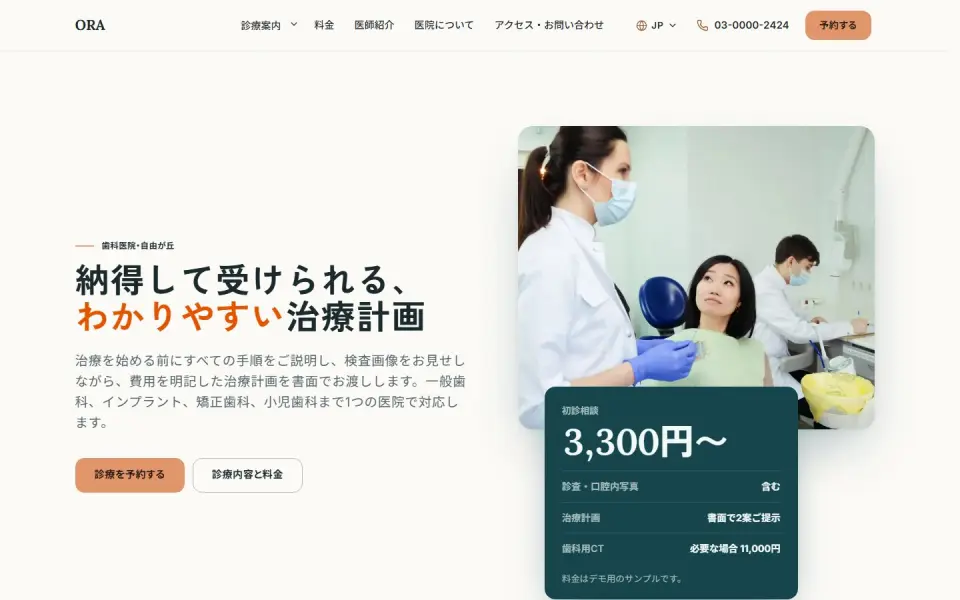 Dental clinic – ORATreatments, prices, doctors and booking
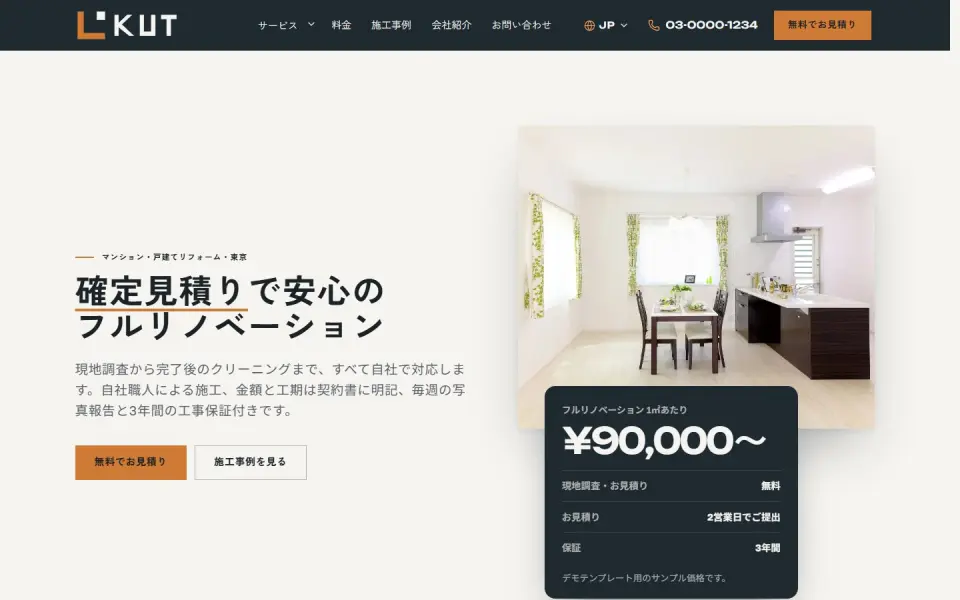 Renovation – KUTEstimate request, projects and prices
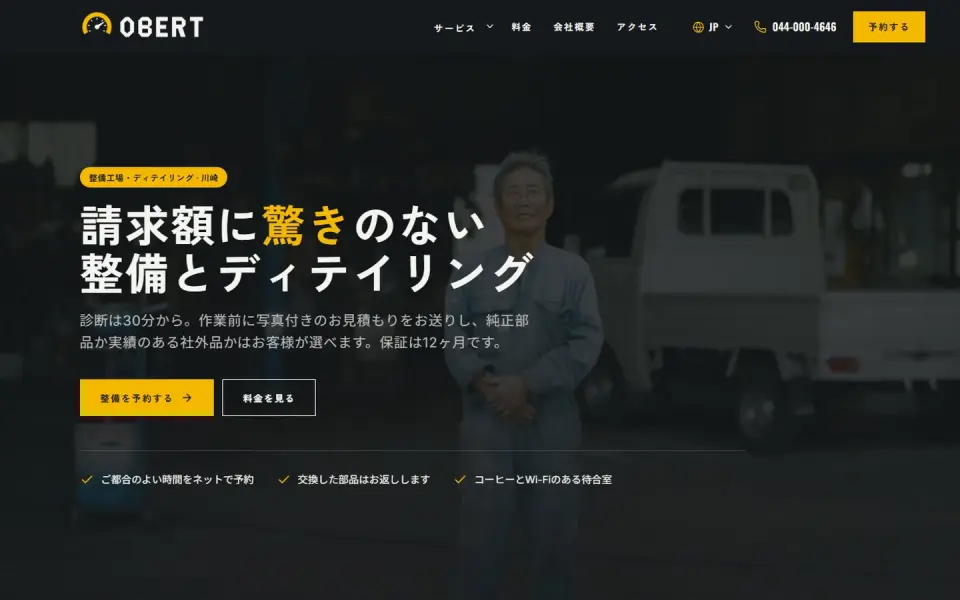 Car service – OBERTService and detailing prices, booking
Template demos with fictional brands. Yours is built with your own brand and content.
How each WordPress error is usually fixed
Repairing WordPress means finding exactly where it stops. These are the typical causes and what a developer does about them.
- Plugin errors and conflicts: rename the plugins folder to disable everything, then re-enable plugins one by one to find the culprit
- Theme problems: switch to a default theme temporarily to see whether the site comes back. A bad edit in functions.php is a classic cause
- PHP version: the host upgrades PHP and older plugins or themes stop working. See WordPress PHP version upgrade for details
- Memory and config files: raising the memory limit in wp-config.php or regenerating .htaccess often clears the error
- Database: verify the connection details and repair tables where needed, always after taking a database backup
- Login issues: wrong site URL settings, cookie problems or security plugin lockouts, fixed from the files or database side
In every case the fastest route is the debug log (WP_DEBUG). It shows the exact file and line that fail, so nobody has to guess and change settings at random.
We trace the cause, fix it on a test copy and apply it to your live site once you have checked it.
What to prepare before asking for a WordPress fix
With this information ready, finding the cause goes much faster. Send what you have – gaps are fine.
- The site URL, when the problem started and which pages are affected
- A screenshot of the error message
- Anything that changed just before, and any notices from your host
- Logins for the hosting control panel, FTP or SFTP and the WordPress admin
- Whether backups exist and where they are stored
For safety, create a temporary admin account for the repair and change passwords once the work is done. Keep hosting and domain contracts in your own name so you stay in control whoever you work with. After the fix, backing up before updates and testing them on a staging copy prevents most repeat problems. If you would rather hand over regular updates and checks, see WordPress maintenance.
How UNANOBO fixes WordPress errors: see it working first
You send the URL and a description of the problem by message, and UNANOBO investigates remotely. The repair is first done on a copy of your site in a test environment. You check the fixed version as a free demo on your computer and phone, and only then is the fix applied to the live site.
The founder handles every project personally, so you explain the problem once and keep the same contact through to follow-up after the repair. Communication runs by message in Japanese or English, with replies within two business days. If years of outdated themes and plugins make a rebuild the more stable choice, you also get a free demo of what a new site could look like.
How it works
- 01
Free demo
We start with a free demo built around your brand.
- 02
Feedback
Structure, tone and details are refined with you, on the demo itself.
- 03
Launch
The site goes live on a solid SEO foundation.
- 04
Growth
SEO and ads take it further, guided by the numbers.
FAQ
What does the free demo include?
We fix the problem on a copy of your site in a test environment, and you click through the working version yourself. You also get a short explanation of the cause and what was changed. You decide after that whether the fix goes to your live site.
Is there any cost if I decide not to go ahead?
No. You can stop after reviewing the test version. Logins you shared are discarded once they are no longer needed, and we recommend changing the passwords anyway.
How long does a fix take?
Problems with a clear cause, such as a plugin conflict or a failed update, are often quick to resolve. A damaged database or a hacked site takes longer to investigate. After looking at the symptoms, you get the plan and an expected timeframe before any work starts.
I am not comfortable sharing my logins.
Creating a separate account just for the repair is the best approach. Change the hosting and FTP passwords after the work is finished and access is closed. We only ask for the access the specific problem requires.
Will I lose posts or images?
Files and the database are backed up before any work, and every fix is tested on the copy before it touches the live site, which keeps the risk to your content as low as possible. If something was already lost, we check whether your host's backups can restore it.
Can this really be done remotely, by message?
Yes. With access to the hosting and the WordPress admin, the whole repair happens remotely. Everything runs by message in Japanese or English, so there is no need to schedule calls – reply whenever it suits you.
Related pages
FREE DEMO
Site down? Send us the symptoms
Share the URL and what you are seeing. We trace the cause and show you the repaired site as a free demo before anything changes on your live site.