
Google Shopping ads in Japan – from setup and feed to ROAS management
Google Shopping ads put your product photo, price and store name right on the search results page, which makes them a natural fit for online stores. They also have their own traps: products held back by feed errors, or a budget that drains into a few items and leaves no profit. This page explains how Shopping ads work for stores selling in Japan, how to launch them, how to keep your product feed in shape, and how to manage product groups and ROAS targets once ads are live.
- Free demo – decide after you see it
- By message, in Japanese or English
- One person from demo to launch
FREE DEMO
Improve your product pages first – free
Send us your store URL. We build a free demo of product pages that make it easier for ad visitors to buy, and propose a structure for your Shopping ads.
- A free demo of improved product pages
- A proposed product group structure
- Feed issues spotted before you launch
How Google Shopping ads work
Shopping ads run on the product data you upload to Google Merchant Center. Google matches each search to the products in your feed and decides which ones to show. Your product title, description, image and price are the ad itself, so there are no keywords or ad copy to write.
Ads appear in the product row at the top of search results, in the Shopping tab and in Google Images. Shoppers compare photos and prices before they click, so the traffic tends to be people who are already close to buying.
- What you provide: a product feed – a structured list of your items – in place of keywords and ad text
- What decides visibility: how well the search matches your product data, your bid and product quality signals
- How you pay: per click; impressions alone cost nothing
- Campaign types: standard Shopping campaigns, and Performance Max, which also reaches placements beyond Shopping
Products in Merchant Center can also appear for free in the Shopping tab through free listings. Many stores use these first to check that their feed is healthy, then add paid Shopping ads to scale reach.
Which stores Shopping ads suit – and where to be careful
Shopping ads work best when people search by product name, model number or category. Check where your store sits before you set a budget.
- Strong fit: branded or model-number products, items that sell on their photo, competitive prices
- Strong fit: large catalogs where building search ad keywords item by item is impractical
- Be careful: low-priced items with relatively high shipping costs, where little margin is left after the click
- Be careful: fast-changing stock that your feed cannot keep up with
- Restricted: medicines and some health products limited by Google's policies
Even in the careful cases, running ads only on best sellers or high-margin items can pay off. Start by working out your gross margin and average order value, then the maximum ad cost you can accept per sale. That number becomes the base for your ROAS target later.
Send us your store URL and we will build a free demo of improved product pages, with a suggested rollout plan.
How to launch Shopping ads, step by step
Setup comes down to five steps. If your store is ready, going from a new account to live ads typically takes a few days to two weeks.
- Prepare the store: publish your legal seller notice (tokushoho), shipping costs, return terms and contact details
- Open Merchant Center: add your business information and verify ownership of your store URL
- Upload products: Shopify has Google's official app, WooCommerce has plugins, and other stores can use a spreadsheet or file feed
- Link Google Ads: connect Merchant Center to your Google Ads account and set up purchase conversion tracking
- Build the campaign: set budget, location and bidding, and start with a focused set of products
The usual stumbling blocks are missing shipping or return details and launching without working purchase tracking. Without tracking you cannot see which products sell, and automated bidding has nothing to learn from. Our guide to Google Merchant Center setup walks through registration and the review issues that most often hold stores back.
What the free demo gives you
- 01A working demoA demo site you can open and click through on a computer and a phone.
- 02A structure proposalWhich pages you need, what goes on each and where visitors get in touch.
- 03Plan and estimateAfter you have seen the demo you get the plan to launch and an estimate.
Why it is safe to ask
- The demo is free. If you decide not to go ahead, it costs you nothing.
- Everything happens by message, in Japanese or English.
- Your domain, hosting, ad and analytics accounts stay in your name.
- The founder handles your project from the first demo to growth after launch – one contact all the way.
Demo sites we built
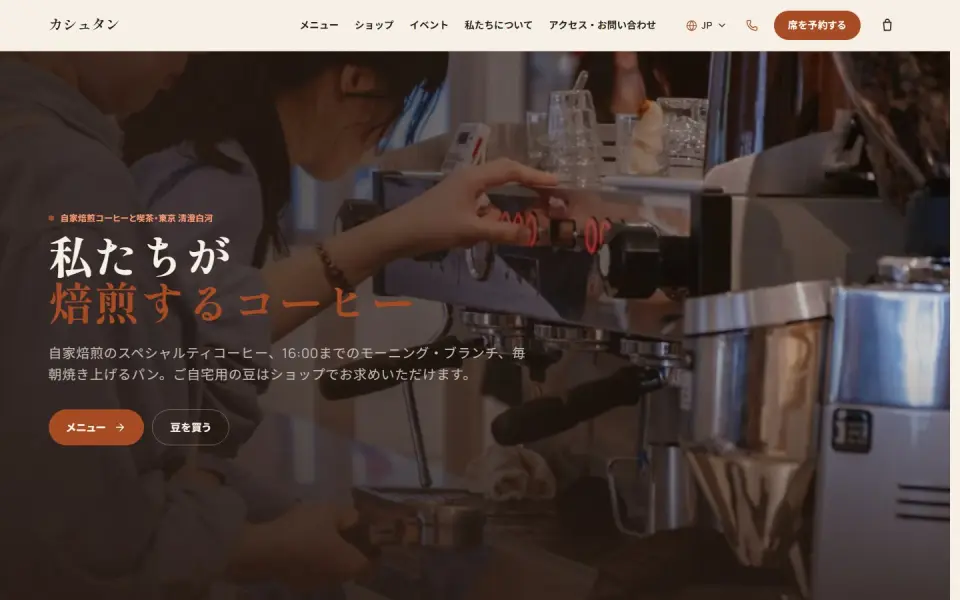 Café & roastery – KashtanMenu, events and an online bean shop
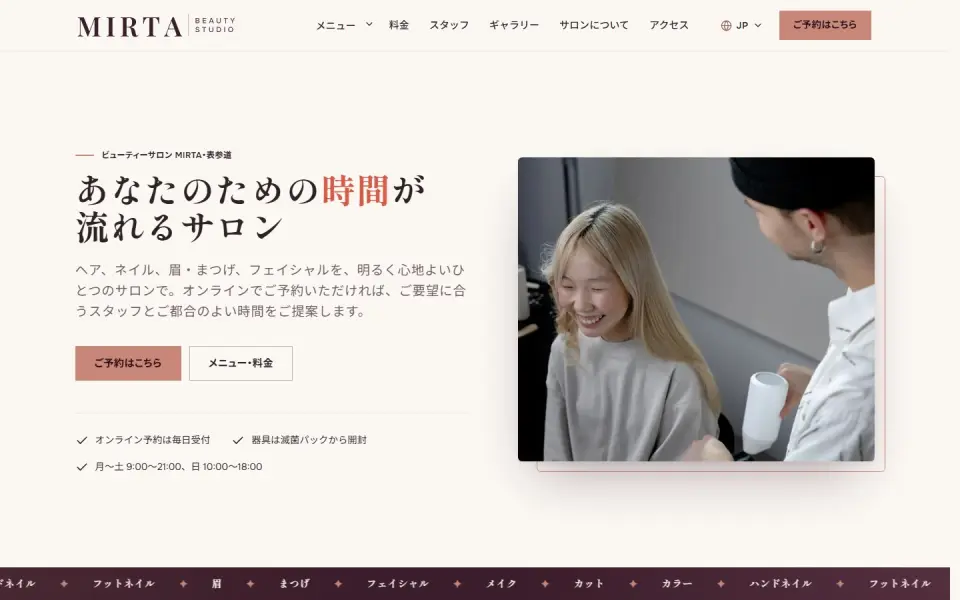 Beauty salon – MIRTABooking form, price list and team
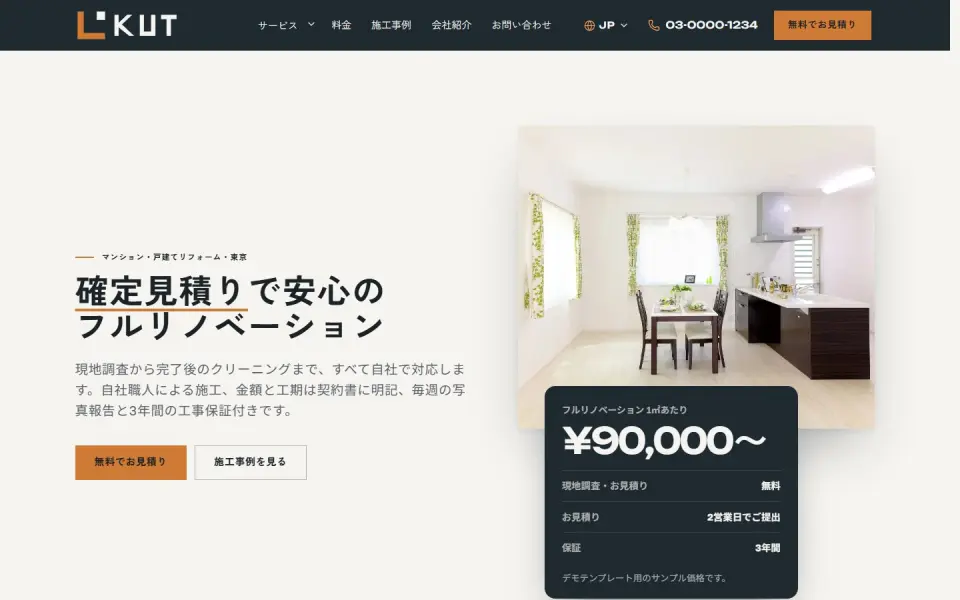 Renovation – KUTEstimate request, projects and prices
Template demos with fictional brands. Yours is built with your own brand and content.
Getting your product feed right
You cannot pick keywords for Shopping ads, so the searches you show up for depend on how your product data is written. Feed quality is ad performance. Check these fields before you go live:
- Titles: put brand, product type, material, size and color – the words people search – near the start
- Images: clear product photos with no promotional text or overlaid logos
- Price and stock: match the site exactly; in Japan list tax-inclusive prices and keep sale prices up to date
- GTIN (JAN code) and model number: for branded goods, a JAN code helps your item appear for searches of that exact product
- Categories: set both the Google product category and your own product type
- Custom labels: tag items by margin, best seller or season so you can use them in campaign structure later
The Diagnostics view in Merchant Center lists disapproved products and the reason for each. Price mismatches and image issues can appear after launch too, so a weekly check is a good habit.
We review your feed and product pages together and show the improvements in a free demo.
Managing Shopping ads: product groups and ROAS targets
Once ads are running, treat products differently. Split them into groups with similar economics and give each group its own budget and target, so spend flows to the items that make money.
- Ways to group: by category, brand, margin level, or best sellers versus new arrivals
- Bidding stages: start with maximize clicks or manual bids while purchase data is thin, then move to target ROAS once sales come in steadily
- Setting the ROAS target: work it out from margin. At a 40% gross margin, anything below 250% ROAS means ad spend exceeds gross profit
- Exclusions: use the search terms report to exclude irrelevant queries, and lower bids or pause products that get clicks without sales
A ROAS target set too high at the start can choke delivery so the campaign never learns. Begin a little below break-even, then review every two to four weeks. To reach placements beyond Shopping, see Performance Max management; for search, Meta and the rest of your store's paid traffic, see e-commerce advertising.
Shopping ads management with UNANOBO: start with a free demo
Results depend on the ads and also on the product page people land on after the click. Before you commit, UNANOBO takes your store URL and builds a free demo of improved product pages and paths to checkout in your brand's style, together with a proposed structure for your product groups and rollout.
The process is free demo, feedback, launch, growth. The founder handles every project personally – Merchant Center, daily management and product page improvements – so you keep one contact throughout. Everything runs by message, in Japanese or English. Your Google Ads and Merchant Center accounts are opened in your name, and the data stays with you.
How it works
- 01
Free demo
We start with a free demo built around your brand.
- 02
Feedback
Structure, tone and details are refined with you, on the demo itself.
- 03
Launch
The site goes live on a solid SEO foundation.
- 04
Growth
SEO and ads take it further, guided by the numbers.
FAQ
What does the free demo include?
A working demo of improved product pages and paths to purchase, built from your current store and brand, plus a proposed structure for your Shopping ads product groups and rollout. Neither costs anything.
What if I decide not to go ahead after the demo?
That is fine, and there is no charge. The feed improvements we point out are yours to use if you run the ads yourself.
How long until ads are live?
If your seller notice, shipping and return terms are already on the site, a few days to two weeks from opening Merchant Center is typical. If the review flags issues, we fix them and request a new review.
What should I prepare?
Your store URL, admin access to Shopify, WooCommerce or your platform, rough margins per product and a monthly ad budget ceiling. If you already have Google Ads or Merchant Center accounts, admin access to those helps too.
Can a BASE store run Shopping ads?
Yes, as long as the product data gets into Merchant Center. The feed method depends on how the store is set up, so we confirm the right approach during the demo stage. For a small catalog, a spreadsheet feed is an easy place to start.
Can you manage our ads remotely, by message?
Yes. UNANOBO works remotely from outside Japan and handles everything by message, in Japanese or English. You get a reply within two business days.
Related pages
FREE DEMO
Get your store ready before you launch Shopping ads
Send us your store URL and we will build a free demo of improved product pages, with a proposed Shopping ads structure alongside it.