
Google Merchant Center setup service in Japan – from account to approved products
Google Merchant Center is where your products enter Google: free listings in the Shopping tab, and Shopping ads once you link Google Ads. Setup looks simple, yet many Japanese stores get stuck at review because of site details, feed data or shipping settings. This page walks through the setup step by step for owners who want to do it themselves, and shows how UNANOBO handles the whole setup for you.
- Free demo – decide after you see it
- By message, in Japanese or English
- One person from demo to launch
FREE DEMO
A free demo, ready for Google Shopping
Send us your store URL. We build a free demo of your product pages shaped to pass Merchant Center review and show you how the setup would run.
- Shipping and return info set up the way Google expects
- Review blockers spotted before you submit
- A clear scope and plan for the setup
What Google Merchant Center setup gives you – and what your store needs first
Merchant Center is Google's dashboard for your product data. Once products are approved they can appear for free in the Shopping tab and other Google surfaces, and with a linked Google Ads account you can run Shopping campaigns. The account is free, but Google reviews your website as well as your feed. Check that your store already has the following:
- Legal notice: a 特定商取引法に基づく表記 page with business name, address, phone and email
- Shipping and returns: a clear page with shipping fees, delivery times and return conditions
- Tax-inclusive prices: the same tax-inclusive price on the product page and in the cart
- Secure checkout: HTTPS across the site and a checkout that works end to end
- Complete product pages: name, price, stock status and images shown correctly on every page
If any of these is missing, even a perfect feed can fail review. Walk through your own store as a customer, right up to the payment step, and see whether every piece of information is easy to find.
Where Merchant Center setup usually goes wrong
Creating the account is the easy part. Most stores get stuck between submitting products and seeing them live. The usual causes:
- Feed prices do not match site prices, often after a sale, so products are disapproved
- Shipping costs in Merchant Center differ from the fees written on the site
- GTINs (JAN codes in Japan) are missing or belong to a different product
- Product images carry text, borders or logos, or are too small
- Contact details or the return policy are hard to find, and the whole account is suspended for misrepresentation
An account-level suspension means fixing every cause and then requesting a new review, which takes time. Our guide to Merchant Center misrepresentation covers how to deal with suspensions and warnings. Preventing these issues during the first setup is the fastest route to live products.
Send us your store URL and we will show the fixes in a free demo.
Step by step: from sign-up to products on Google
If you are setting it up yourself, this order keeps rework to a minimum. Product review typically takes a few days, so start early if a campaign or sale date is already fixed.
- Google account: use an account owned by the business, separate from personal accounts
- Business details: store name, address, contact details, target country (Japan) and currency (JPY)
- Verify and claim your website: with an HTML tag, Google Tag Manager or Google Analytics
- Shipping and returns: enter fees, delivery times and return terms exactly as they appear on your site
- Product data: choose Google Sheets, a file upload or a connection to your e-commerce platform
- Diagnostics: review disapproved products and warnings, fix the cause and resubmit
- Link Google Ads: needed if you plan to run Shopping ads
On Shopify, the Google & YouTube app handles site verification and product sync in one place; on WordPress, WooCommerce stores use the official Google for WooCommerce plugin. For the Shopify details, see Shopify and Google Shopping.
What the free demo gives you
- 01A working demoA demo site you can open and click through on a computer and a phone.
- 02A structure proposalWhich pages you need, what goes on each and where visitors get in touch.
- 03Plan and estimateAfter you have seen the demo you get the plan to launch and an estimate.
Why it is safe to ask
- The demo is free. If you decide not to go ahead, it costs you nothing.
- Everything happens by message, in Japanese or English.
- Your domain, hosting, ad and analytics accounts stay in your name.
- The founder handles your project from the first demo to growth after launch – one contact all the way.
Demo sites we built
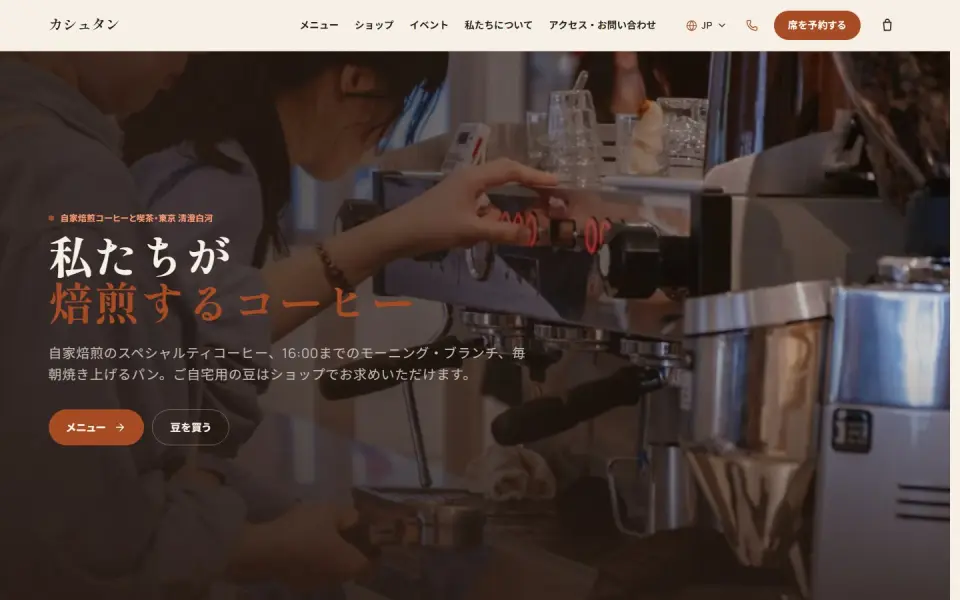 Café & roastery – KashtanMenu, events and an online bean shop
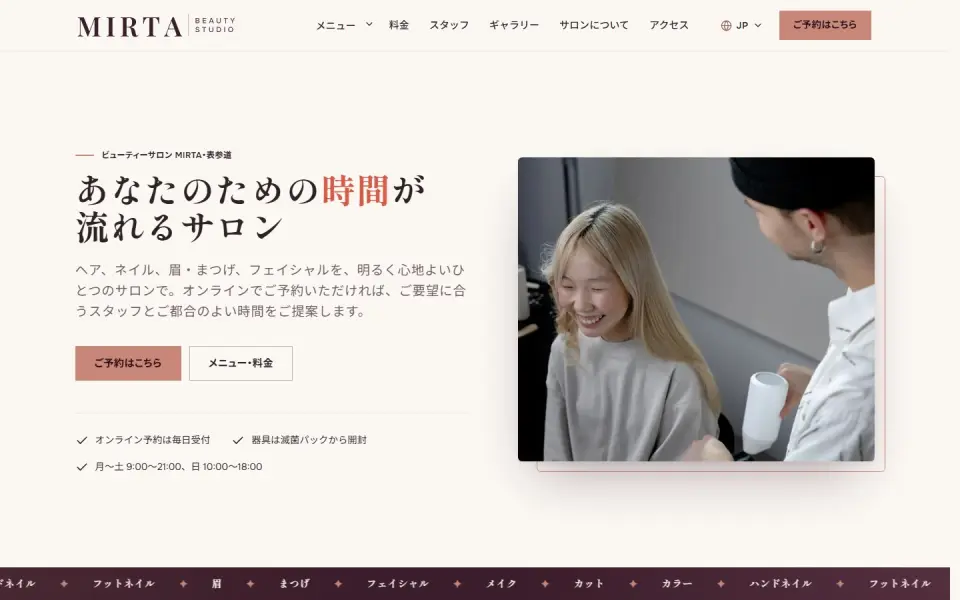 Beauty salon – MIRTABooking form, price list and team
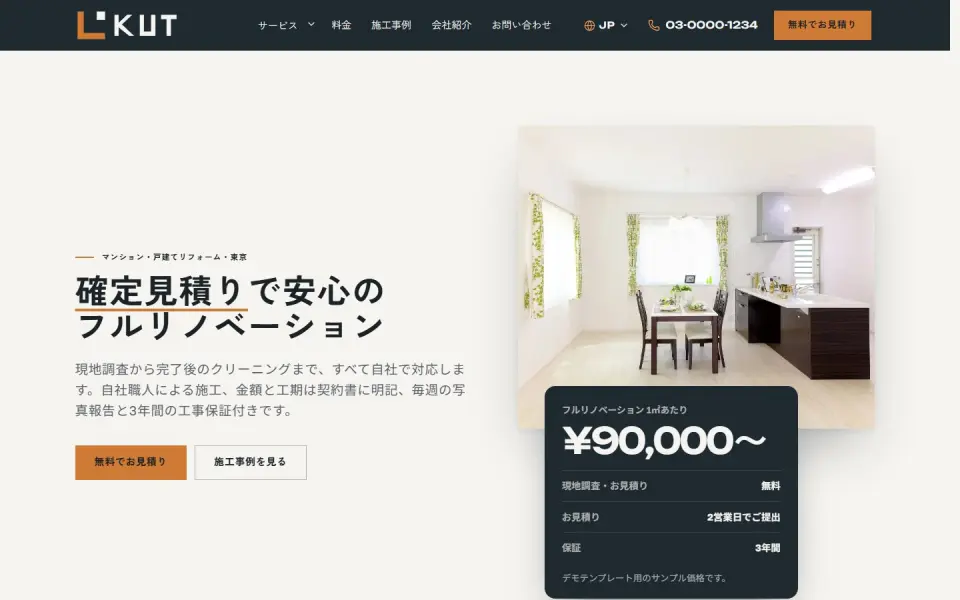 Renovation – KUTEstimate request, projects and prices
Template demos with fictional brands. Yours is built with your own brand and content.
Feed, shipping and tax settings for Japanese stores
The product feed is the list of products you hand to Google. How you fill each field affects both approval and how often your products show up. For stores selling in Japan, pay attention to these points:
- Title: put brand, product type, size or volume and color up front – the words shoppers actually search
- Price: for Japan, submit tax-inclusive prices. The tax settings in Merchant Center apply to the US only
- Identifiers: enter the JAN code as GTIN; for original products without one, use brand and model number
- Availability: mark items out of stock in the feed as soon as they sell out on the site
- Shipping: mirror your real rate table – flat rate, free over a set amount, surcharges for Okinawa and remote islands
- Delivery time: enter handling time and transit time separately
Prices and stock keep changing after launch, so the feed has to follow. An automatic platform sync or a scheduled fetch from a spreadsheet keeps the feed in line with the site and prevents mismatch disapprovals. The more products you carry, the more this decision pays off.
See your product pages in a free demo, then get a clear scope and plan for the setup.
What to keep doing after setup
Once products are approved, free listings start to show. A short monthly routine turns that visibility into sales:
- Check diagnostics for new warnings or disapprovals
- Review titles and images of products with many impressions and few clicks
- Follow Google visitors through to purchase in GA4
- Before seasonal items or sales, confirm prices and stock have reached the feed
To reach more shoppers, you can add paid Shopping campaigns on top. See Google Shopping ads for how they work and how to start.
How UNANOBO handles Merchant Center setup: a free store demo first
UNANOBO takes care of the full setup: account creation, site verification, shipping and return settings, the product feed and the link to Google Ads. The account is created in your name, so you always keep admin control.
Before you commit, we build a free demo based on your current store, with shipping and return information, the legal notice and product pages shaped to pass review. You check it on a computer and a phone, and then receive a proposal for the setup scope and steps. The process is free demo, feedback, launch, growth. The founder handles every project personally, from the first demo to ongoing work after setup, and everything runs by message in Japanese or English.
How it works
- 01
Free demo
We start with a free demo built around your brand.
- 02
Feedback
Structure, tone and details are refined with you, on the demo itself.
- 03
Launch
The site goes live on a solid SEO foundation.
- 04
Growth
SEO and ads take it further, guided by the numbers.
FAQ
Does Merchant Center cost anything?
Creating an account and appearing in free listings costs nothing. Shopping ads are paid per click through Google Ads. The demo is free as well, and the setup estimate comes after you have seen it.
What if I see the demo and decide not to go ahead?
Then you pay nothing. The improvements pointed out in the demo are still yours to use if you set up Merchant Center yourself.
How long until my products appear on Google?
If the store is ready, the setup work itself usually takes a few days. Google's review then typically takes a few more, plus time for any site fixes. If a sale or campaign date is fixed, get in touch early.
What do I need to prepare?
Your store URL, business contact details, shipping and return terms, and a product list with JAN codes if you have them. If you already have Merchant Center or Google Ads accounts, you invite us as an admin, so you never need to share a password.
Do you work with Shopify, BASE and WordPress stores?
Yes. Shopify connects through its official app and WooCommerce through the official plugin; other stores can use a Google Sheets or file-based feed. We suggest the method that fits your product count and how often things change.
Is it fine to work remotely, by message only?
Yes. Merchant Center setup is done entirely online, so messages are all it takes. We work in Japanese or English, reply within two business days and keep you updated on review status and any fixes needed.
Related pages
FREE DEMO
Get your products ready for Google
Send us your store URL and we will build a free demo shaped for Merchant Center review. Decide after you have seen it.