
Shopify Google Shopping setup – from Merchant Center to your first ads
You want your Shopify products to appear in Google's image-and-price results, yet the store gets stuck in Merchant Center review, or half the catalog sits at "Disapproved". This page walks through how the connection works, what your store needs before you link it, how to set up the Google & YouTube app, how to shape product data, and how to launch Shopping ads – plus what changes if you sell on BASE.
- Free demo – decide after you see it
- By message, in Japanese or English
- One person from demo to launch
FREE DEMO
Product pages ready for Google Shopping – free
Send us your Shopify or BASE store address. We build a free demo of product pages shaped for review and visibility, and you decide after you have seen it.
- Your products, reshaped for Shopping
- See the usual review blockers on screen
- A plan for the connection and ads
How Shopify Google Shopping works: free listings and ads
A Shopify Google Shopping setup sends your product data to Google Merchant Center, which then shows your items on the Shopping tab and in product blocks in search. There are two kinds of placement:
- Free listings: approved products can appear on the Shopping tab and other surfaces at no cost
- Shopping ads: paid, cost-per-click placements with image and price, often at the top of search results. Today they mostly run through Performance Max campaigns in Google Ads
Both start from the same Merchant Center data. Weak data limits visibility in free and paid placements alike, so the first job is a store and a feed that pass review. If you want to try the free placements first, see Google free listings.
Store requirements to fix before you connect Merchant Center
The most common early blocker is an account-level review. Google checks whether shoppers can buy from you with confidence, and it looks at the whole store before individual products. Check these points first:
- Legal seller page: in Japan, a 特定商取引法 page with business name, address, phone and email, linked from the footer
- Return policy: return window, who pays shipping and how refunds work – also entered in Shopify's policy settings
- Shipping: rates and delivery times that match between the store and Merchant Center
- Matching price and stock: the tax-inclusive price and availability on the product page equal what you send to Google
- Live store: password protection removed and checkout able to complete a real order
- Contact details: a clear way to reach you and who runs the store
One missing item can trigger a "misrepresentation" suspension, and review requests are limited in number and timing. Getting everything in place before you apply is the fastest route.
Send us your store address and we will show the review-ready version in a free demo.
Connecting Shopify and Merchant Center with the Google & YouTube app
Shopify's official Google & YouTube app syncs products, creates or links Merchant Center and can launch Google Ads campaigns from your admin. For most stores it is the right way in.
- Install the app from the Shopify App Store
- Connect a Google account that belongs to the store owner
- Link or create Merchant Center – domain verification happens here
- Set country and language: for Japan, Japan, Japanese and JPY
- Sync shipping from Shopify or set it directly in Merchant Center
- Sync and review products: after a few days, check approval status and warnings in Merchant Center
"Under review" right after syncing is normal. For disapproved items, read the reason, fix the product in Shopify and the next sync picks it up. For a closer look at the Merchant Center screens and manual feeds, see Google Merchant Center setup.
What the free demo gives you
- 01A working demoA demo site you can open and click through on a computer and a phone.
- 02A structure proposalWhich pages you need, what goes on each and where visitors get in touch.
- 03Plan and estimateAfter you have seen the demo you get the plan to launch and an estimate.
Why it is safe to ask
- The demo is free. If you decide not to go ahead, it costs you nothing.
- Everything happens by message, in Japanese or English.
- Your domain, hosting, ad and analytics accounts stay in your name.
- The founder handles your project from the first demo to growth after launch – one contact all the way.
Demo sites we built
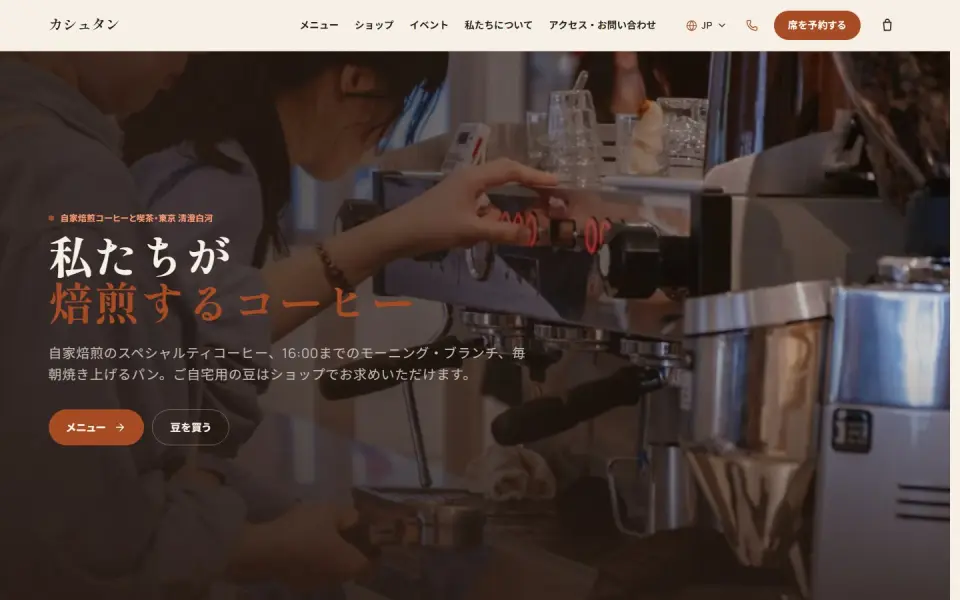 Café & roastery – KashtanMenu, events and an online bean shop
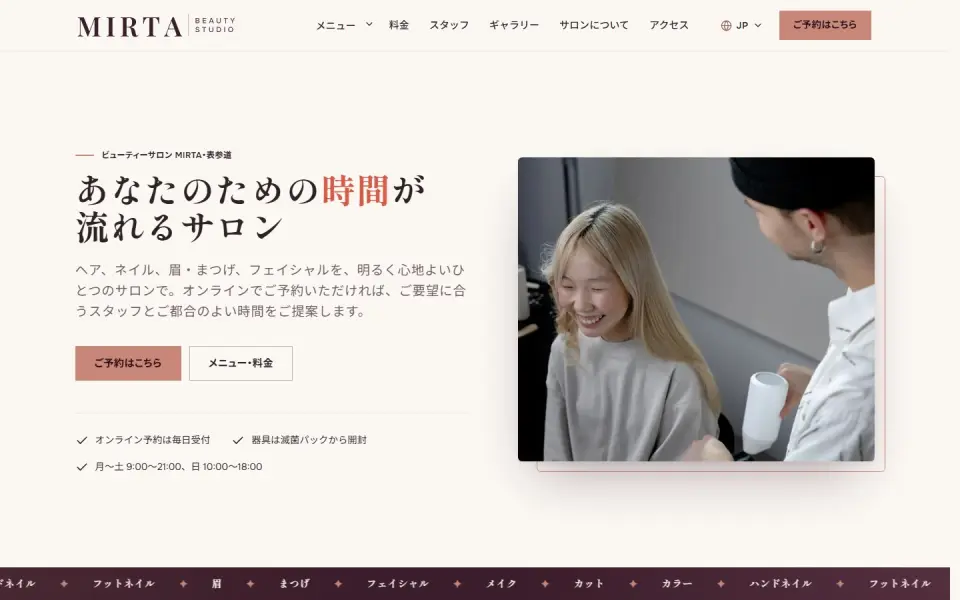 Beauty salon – MIRTABooking form, price list and team
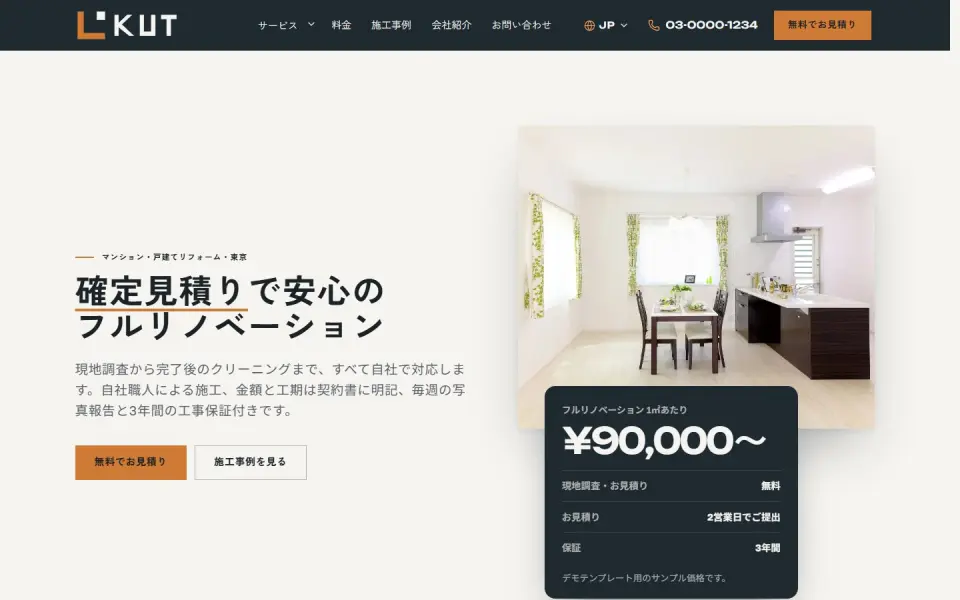 Renovation – KUTEstimate request, projects and prices
Template demos with fictional brands. Yours is built with your own brand and content.
Product data that gets shown – and selling on BASE
Once approved, visibility depends on the content of your data. Google matches search terms against product information, so shape it at the Shopify product level:
- Titles: brand, product name, material, size or color – the words shoppers type, near the start
- Images: a clear product photo on a plain background as the main image, without text or logo overlays
- JAN code (GTIN): for branded goods, enter it in Shopify's barcode field. For your own products without codes, make brand and model number clear
- Variants: colors and sizes as Shopify variants, each with its own image and stock
- Descriptions: material, dimensions, use and care – what people compare before buying
On BASE the logic is the same: product data goes into Merchant Center. BASE offers an app in BASE Apps for linking products with Google; its features can change, so check the current guidance when you set it up. Anything the app cannot cover can be added as supplemental data in Merchant Center. The store requirements above apply to BASE as well.
We build a free demo of your product pages with cleaner titles and images.
Launching Shopping ads and common mistakes
When products are approved and stable in free listings, ads can widen your reach. You can create a campaign from the app, while fine-tuning happens in Google Ads. Prepare these first:
- Conversion tracking: Google tag and GA4 recording purchases and add-to-cart before any spend
- A focused product set: start with items that have healthy margins and steady stock
- Budget and time: campaigns need data to learn, so set a daily budget and judge results over weeks
- Ownership: Merchant Center and Google Ads in the store owner's name, with access granted to partners
Typical mistakes: running ads with no tracking, sale prices that do not reach the feed and cause disapprovals, and spend flowing to out-of-stock items. For the wider picture, see ads for e-commerce stores.
How UNANOBO sets up Google Shopping: a free demo of your store first
Before you commit, UNANOBO builds a free demo: product pages from your current store and brand, shaped for Google Shopping – titles, image order, and where the legal seller page and return policy sit. You see on screen what review and visibility need.
If you go ahead, the founder personally handles Merchant Center, the app connection, product data fixes, Shopping ads setup and improvements after launch. The process is free demo, feedback, launch, growth, and everything runs by message in Japanese or English.
How it works
- 01
Free demo
We start with a free demo built around your brand.
- 02
Feedback
Structure, tone and details are refined with you, on the demo itself.
- 03
Launch
The site goes live on a solid SEO foundation.
- 04
Growth
SEO and ads take it further, guided by the numbers.
FAQ
What does the free demo include?
Working product pages and a store layout built from your current products, logo and colors, shaped for Google Shopping. You can check them on a computer and a phone. The demo costs nothing and you decide after seeing it.
What if I decide not to go ahead after the demo?
That is fine. There is no charge at the demo stage and nothing to pay if you stop. You are welcome to apply what you noticed to your own setup.
How long until products show on Google?
With the store requirements in place, syncing and review typically take a few days. If the account needs fixes, a review request can add several weeks, which is why we tidy the store before connecting.
What do I need to prepare?
Your store URL, access to your Shopify admin, a Google account and the business details for the legal seller page. If you sell branded goods, a list of JAN codes speeds things up.
Can a BASE store use Google Shopping?
Yes. BASE stores can send products to Merchant Center, mainly through BASE Apps, with any gaps filled in Merchant Center. If you are considering a move to Shopify, we can compare both paths during the demo.
You work remotely – how does communication work?
Everything runs by message, in Japanese or English, and you get a reply within two business days. When something needs to be done in your own admin, you receive clear step-by-step notes.
Related pages
FREE DEMO
See your products ready for Google
Send us your store URL and we will build a free demo of product pages shaped for Google Shopping. Decide after you have seen it.